
Quickstart
You need a Cloudflare account (the free plan is enough) and an OAuth app for each provider you use.
Deploy with the button
Section titled “Deploy with the button”The button creates the Worker, the D1 database and the Durable Object in your account and asks for the secrets. Then:
- Create a Microsoft Entra app, a Google OAuth client, or both.
- Set
ALLOWED_EMAILSto your address, orALLOWED_DOMAINSfor a team, and setADMIN_EMAILS. - Set
PUBLIC_URLto the address of your Worker. This turns on push notifications. - Open the address of your Worker, sign in, connect your calendars, and choose where events go.
If a required setting is missing, every page shows a checklist of what is missing.
Deploy by hand
Section titled “Deploy by hand”git clone https://github.com/michaeljauk/slotmirror && cd slotmirrorpnpm installpnpm wrangler loginpnpm wrangler d1 create slotmirror # add --jurisdiction=eu to keep data in the EU# copy the database_id into wrangler.jsonc, set the variables therepnpm wrangler secret put SESSION_SECRET # openssl rand -base64 48pnpm wrangler secret put TOKEN_ENCRYPTION_KEY # openssl rand -base64 32pnpm wrangler secret put MICROSOFT_CLIENT_ID # and the other client secrets you usepnpm run deploy # applies the migrations, then deploysAll variables and secrets are in the settings reference.
Choose where events go
Section titled “Choose where events go”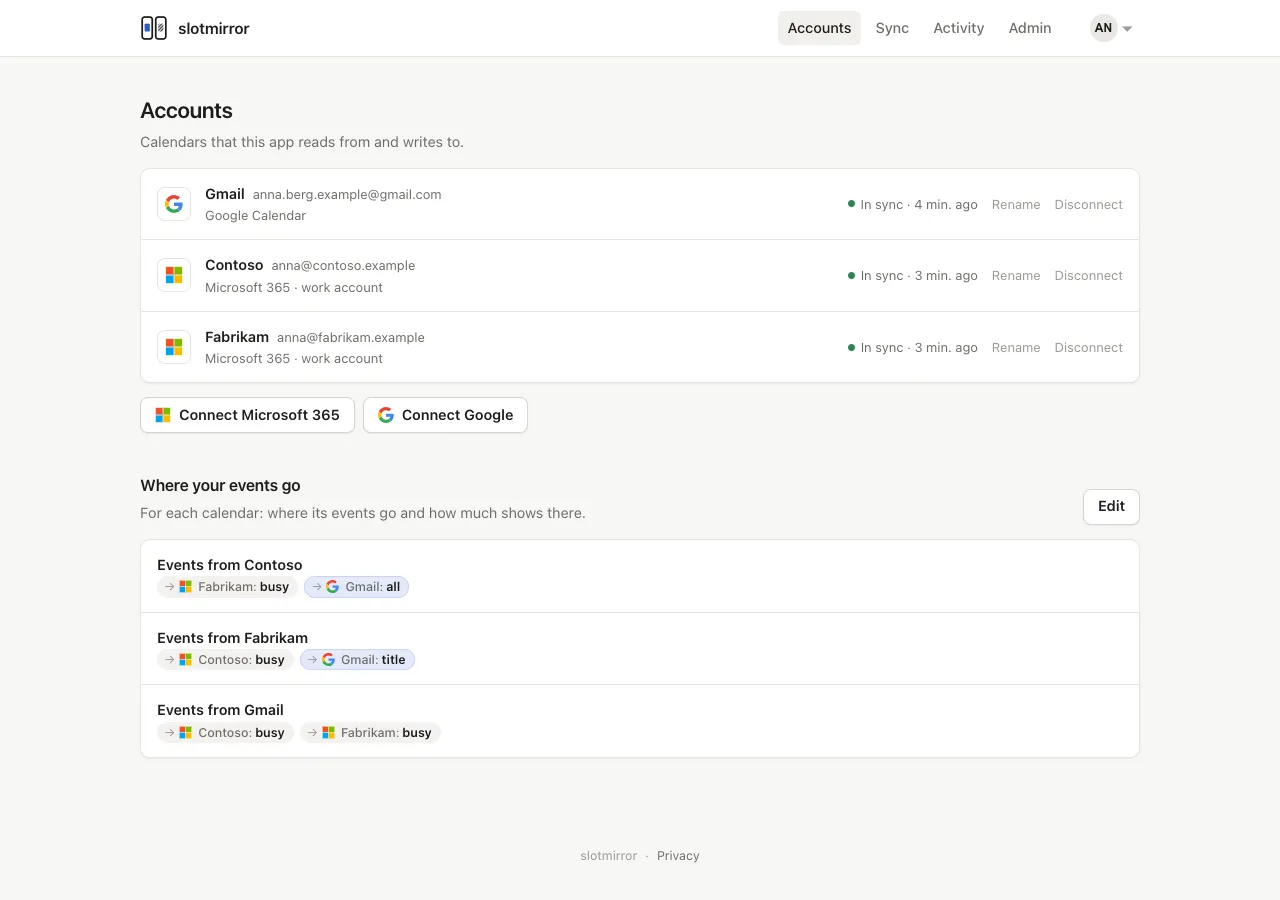
- Connect each account under Accounts.
- Open Where your events go. Put your calendars in the group Block each other: each then sees the others only as “Busy”, marked private.
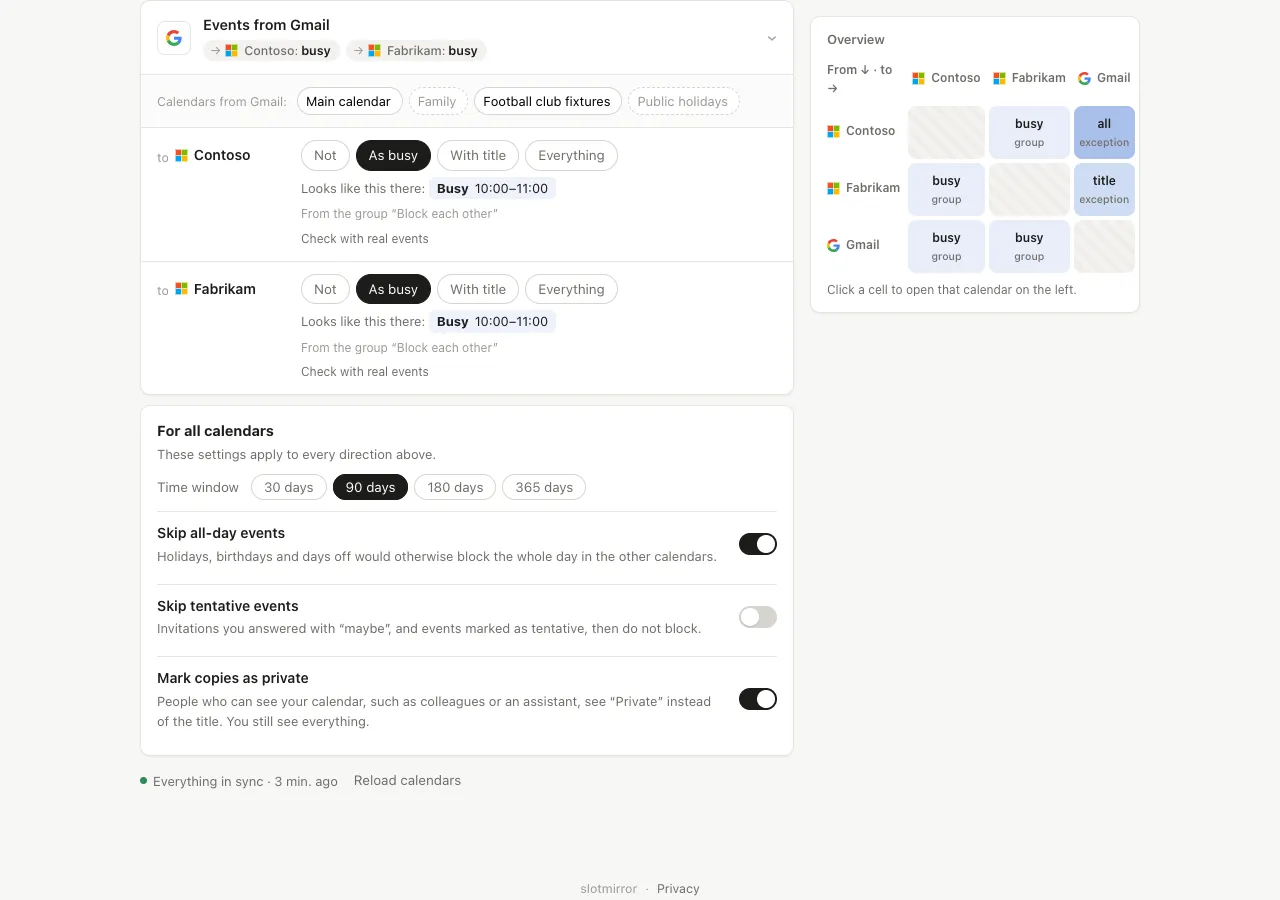
- For more detail in one direction, expand the card of the source account and choose Not, As busy, With title or Everything per target. Looks like this there shows an example event as the target will show it.
- Choose Save. The changes apply immediately.